Table of Contents
Free Editable Christmas Gift Tags for Microsoft Word – Make it easy to put a real name and a personal note on every holiday package. Choose a printable sheet below, save the original WebP, and use Microsoft Word to place editable text over its blank tag spaces. There are four page layouts for everything from a single special present to a stack of classroom favors.
Free Editable Christmas Gift Tags for Microsoft Word
Choose a Tag Layout for Your Gifts
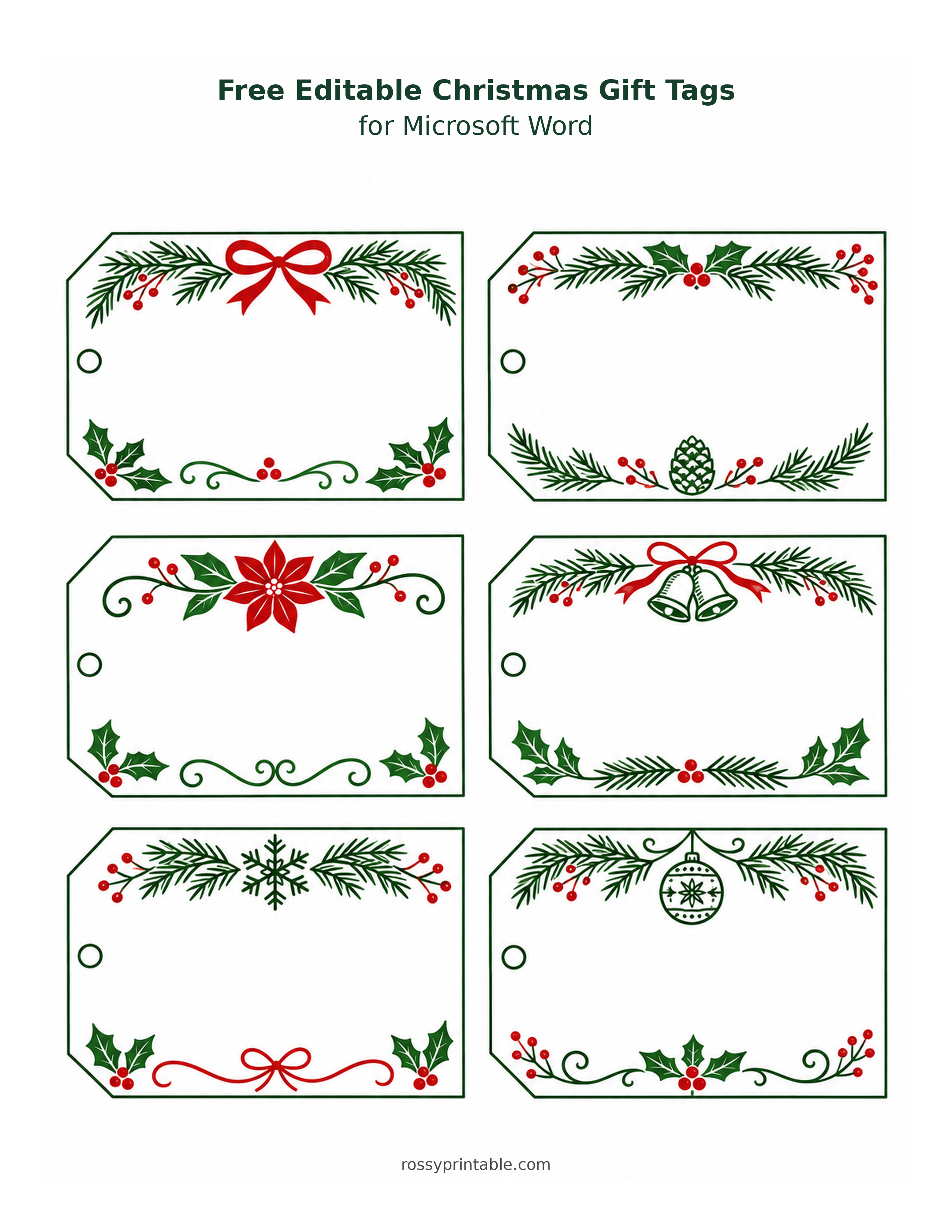
The evergreen sheet gives you six medium-size cutout tags. Red berries, holly, pine branches, and small seasonal details frame a generous white center. Choose it for wrapped gifts when you want the decoration to feel festive without filling the space where the recipient’s name belongs. Each tag has a small marked circle for a ribbon hole.
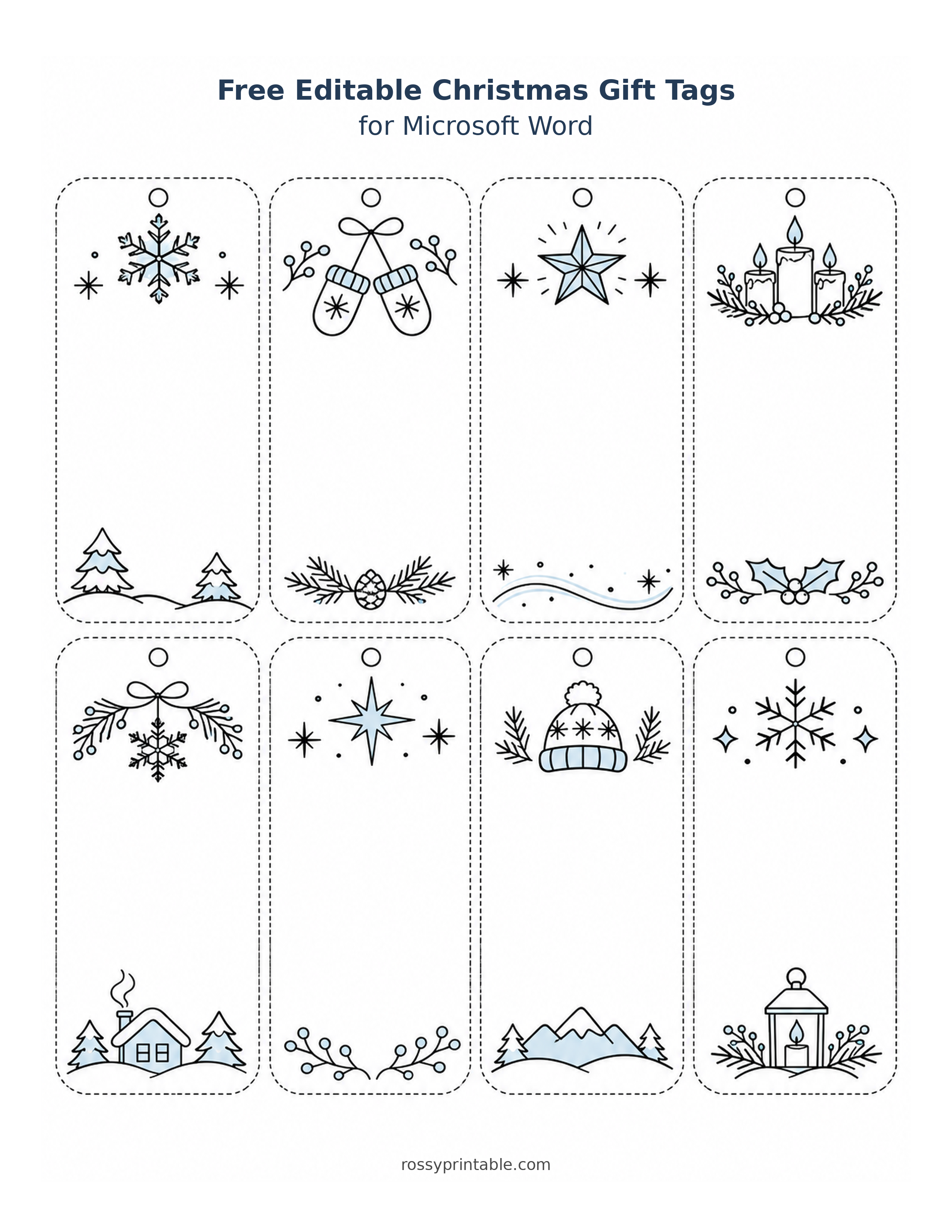
The winter line-art sheet fits eight tall tags on one page. Its snowflakes, mittens, candles, stars, pinecones, and cabin scenes use mostly dark outlines with restrained pale blue. It is a useful choice when you have several gifts to label and want to use less colored ink. The dashed edges show where to cut, and the open centers accommodate one or two short lines.
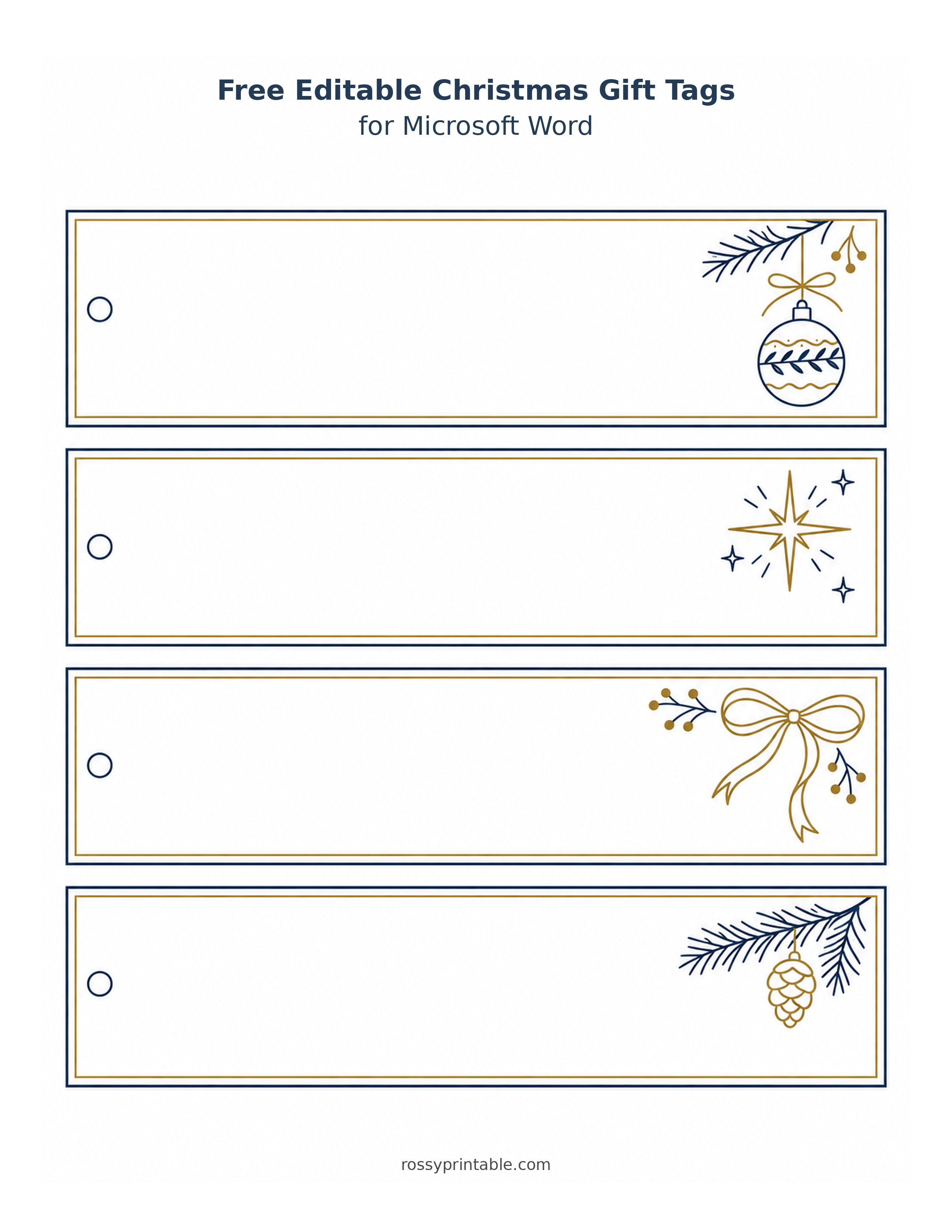
The navy and muted gold sheet uses four wider horizontal tags. It leaves the most space for a message, such as “For Grandma, from the kids” or a short note to accompany a homemade treat. Small ornaments and winter branches stay near the ends of the tags, so your typed greeting can remain the main focus.
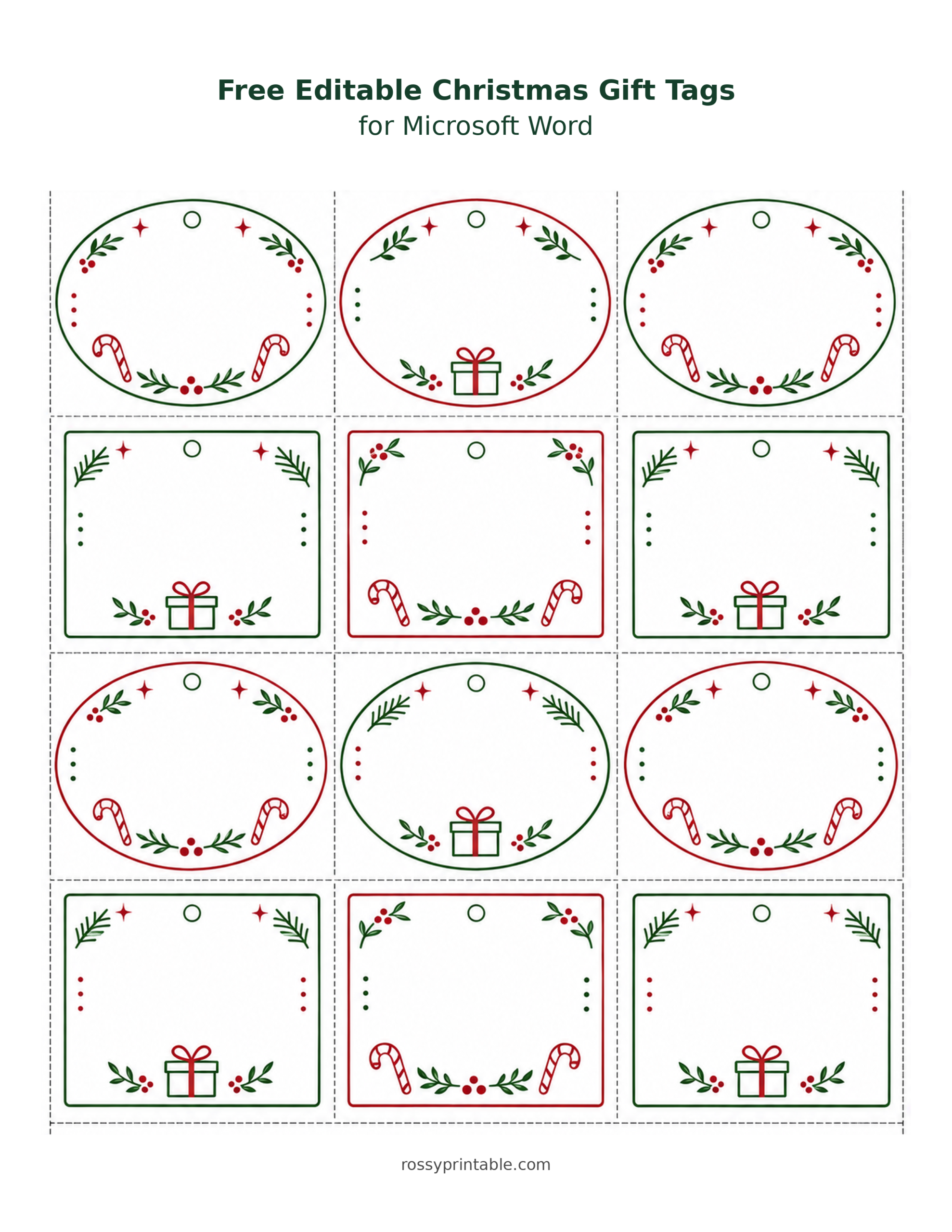
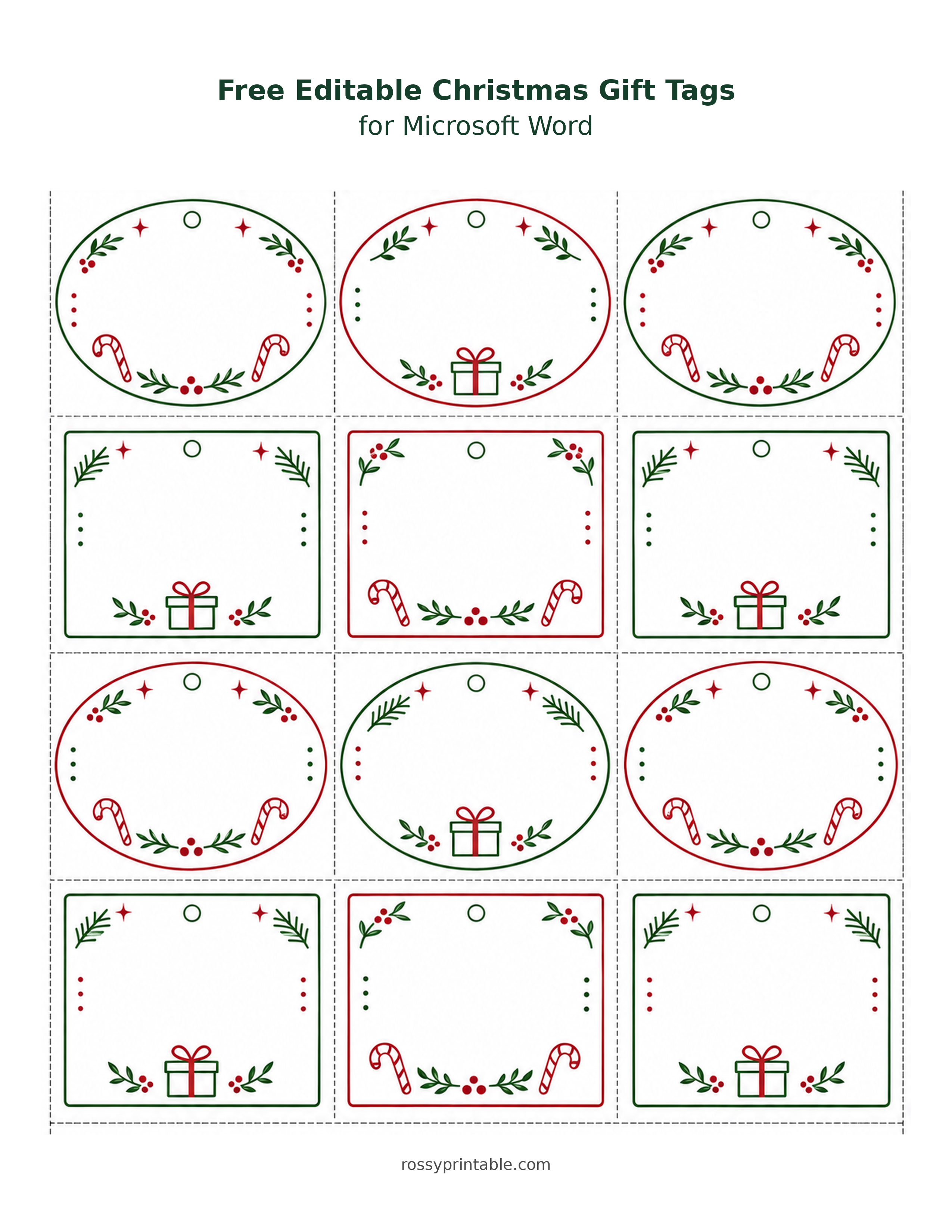
The mini sheet holds twelve labels in alternating oval and rectangular shapes. Candy canes, sprigs, and tiny present drawings surround short blank name areas. Use it for party favors, little stocking gifts, cookie bags, or a large batch of small packages. For long names, pick one of the roomier sheets instead.
How to Make These Christmas Gift Tags Editable in Microsoft Word?
The four download links above provide original WebP image sheets. A WebP is a printable picture, so its artwork and existing heading do not turn into separate editable Word shapes. To personalize the tags, add your own editable text boxes over the blank centers in Word. That way, you can change the names and messages whenever you need another sheet.
- Download the sheet you want. Open Microsoft Word and make a new blank document. Under Layout, choose Letter paper in portrait orientation and set your margins to 0.5 inch.
- Choose Insert, then Pictures, and select the downloaded WebP file. Set the picture width to about 7.5 inches, preserving its proportions. It should fit within the printable width and height of the page. If your version of Word does not accept WebP, convert your downloaded copy to PNG before inserting it; the original website download remains WebP.
- Choose Insert, then Text Box, and place a small box in the blank center of one tag. Set the box to No Fill and No Outline, with wrapping in front of the picture. Type the recipient’s name, a sender, or a short greeting.
- Copy and paste the text box for the other tags. Move each copy into place and edit its text. Save your Word document as a .docx so the names remain editable for next year’s gifts.
Keep the artwork’s aspect ratio locked when you resize it. If a name runs into a border or a corner drawing, shorten it, reduce the font size slightly, or choose the wide four-tag sheet. A centered 11–14 point font is a sensible starting point for the medium tags, while the small favor labels usually need shorter text. Zoom in before printing to check that every name stays inside its tag.
If you want a separately downloadable blank Word layout made for commercially precut tag stock, Avery’s printable tag template 22802 offers a Microsoft Word option for its own 2 × 3.5 inch, eight-per-sheet tags. That is a different layout from these illustrated sheets. Avery also explains the steps to download its Word template, including its account or guest download step. Use the product-specific template when you are printing onto the matching Avery stock rather than plain cardstock.
Print, Cut, and Attach the Tags
For a quick test, print one sheet on ordinary US Letter paper first. Check that the title, outlines, and small watermark are visible and that no edge is clipped. Then print the final sheet on white cardstock suitable for your printer. Many home printers handle light cardstock well, but check your printer’s recommended paper weight and feed settings before using heavier sheets.
In the Word print window, select Letter, portrait, and your intended paper type. Print at the size you laid out in the document rather than applying another fit-to-page adjustment. If you print the WebP itself without Word, set the page to US Letter and keep the full image proportional; use a fit-to-printable-area option if your printer cannot print to the edges. The tag artwork has a white border, but printer margins still vary. The resulting tags will be slightly smaller if your print dialog scales the entire page.
Let the ink dry, then use sharp scissors or a paper trimmer on the straight edges. Cut slowly around the ovals and rounded corners on the mini and winter sheets. A small single-hole punch works at the indicated circles; place a scrap sheet underneath to protect your surface. Thread twine or ribbon through each hole, tie it to the package, and leave enough length to read both the name and the artwork.
These sheets are also handy for a simple holiday activity. Set out colored pencils, let children add color to the winter outlines, and have an adult help with trimming and hole punching. For a family wrapping station, print a few copies of the mini sheet for little items and keep the wide tags for gifts with a personal message. Writing or typing the names before cutting makes it easier to keep track of the recipient for each shape.
Frequently Asked Questions
Are the downloaded WebP files editable Word documents?
No. The WebP files are high-resolution printable artwork. You can insert a sheet into Word and add editable names or messages on top, then save that personalized layout as a Word document. The decorative art itself stays a picture.
Can I print the tags without Microsoft Word?
Yes. Download a WebP sheet and print the picture directly on Letter paper, then write names by hand in the open areas. Word is useful when you want typed names that you can revise and reuse.
Which sheet is best for a long message?
Choose the four wide navy and gold tags. They provide more uninterrupted writing space than the twelve mini tags. For a larger batch with short names, the eight-tag winter sheet is a convenient middle option.